

Skip to content
  • Home
  • Widgets
  • Docs
  • Contact
Get With shopier

Getting Started

2
  • Plugin Installation
  • How to Add Elemmerce Widgets in Elementor

How to use plugin widgets

12
  • How to Setup Woo – Archive Products
  • How to Setup Woo – Categories
  • How to Setup Woo – Archive Carousel
  • How to Setup Site Logo
  • How to Setup YITH Compare
  • How to Setup YITH Wishlist
  • How to Setup My Account
  • How to Setup Cart
  • How to Setup Search
  • How to Setup Drop Down Nav
  • How to Setup Query Management
  • Frequently Asked Questions
View Categories
  • Home
  • Docs
  • How to use plugin widgets
  • How to Setup Cart

How to Setup Cart

1 min read

Cart allows your customers to quickly access their shopping cart and view added products, improving the overall shopping experience. You can add and customize the cart feature on your shop pages within minutes.

First, ensure that the WooCommerce plugin is installed and activated on your site.

Once activated, the cart functionality will be automatically available on your website.

Note: Make sure you have products added to your store; otherwise, the cart feature will not display any items.
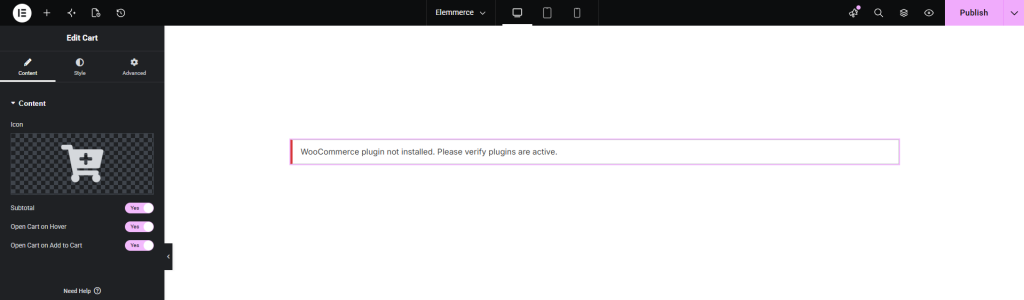
How to Add Cart? #

To utilize the Cart feature, open your desired page in Elementor (existing or new). Navigate to the ‘Elements’ tab and use the search option to find the ‘Cart’ widget. Now simply drag and drop the widget onto the page or the ‘+’ section.

Configuring Widgets Settings

CONTENT TAB #

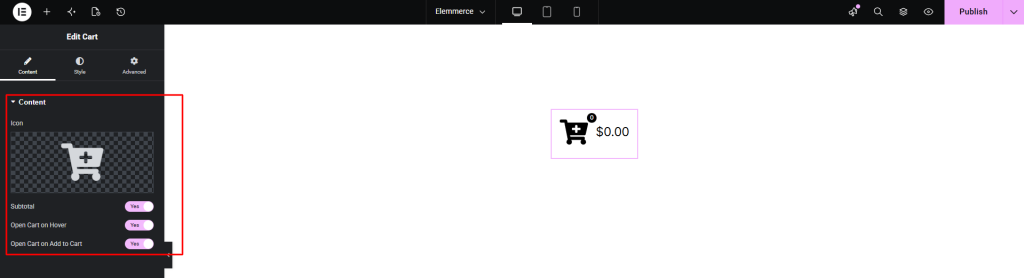
The Content tab in Cart allows you to customize how the cart button appears. You can configure the following options:

  • Icon – Choose or customize an icon to display alongside the button label.
  • Subtotal – Enable/Disable to show the cart subtotal.
  • Open Cart on Hover – Enable/Disable to open the cart when hovering over the icon.
  • Open Cart on Add to Cart – Enable/Disable to automatically open the cart when a product is added.

These options help you adjust the look and behavior of the cart feature to match your website design.
STYLE TAB #

How to Style Cart?

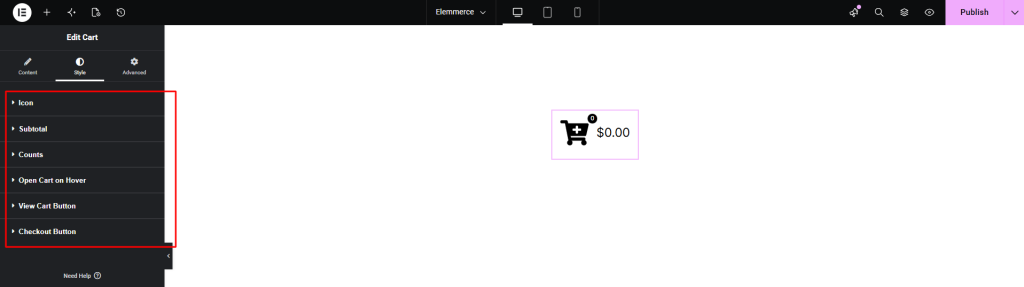
To customize your Cart button (icon and label), navigate to the Style tab. Here, you can adjust the appearance to match your website design.

The Style tab contains the following options:

  • Icon
  • Label
  • Subtotal
  • Counts
  • Open Cart on Hover
  • View Cart Button
  • Checkout Button

These options allow you to control the visual styling of the cart button, including its icon appearance and text formatting.
Updated on June 8, 2026

What are your Feelings

  • Happy
  • Normal
  • Sad

Share This Article :

  • Facebook
  • X
  • LinkedIn
  • Pinterest
How to Setup My AccountHow to Setup Search
Table of Contents
  • How to Add Cart?
  • CONTENT TAB
  • STYLE TAB

Copyright © 2026 Elemmerce. All rights reserved.

Powered by
►
Necessary cookies enable essential site features like secure log-ins and consent preference adjustments. They do not store personal data.
None
►
Functional cookies support features like content sharing on social media, collecting feedback, and enabling third-party tools.
None
►
Analytical cookies track visitor interactions, providing insights on metrics like visitor count, bounce rate, and traffic sources.
None
►
Advertisement cookies deliver personalized ads based on your previous visits and analyze the effectiveness of ad campaigns.
None
►
Unclassified cookies are cookies that we are in the process of classifying, together with the providers of individual cookies.
None
Powered by