

Elemmerce Woo Archive Products helps in showcasing your archive products on any page, offering styling options from which you can present your product to your viewer within minutes. You can follow the guideline below to configure and style your Elemmerce Woo Archive Products.
HOW TO ACTIVATE Elemmerce Woo Archive Products? #
First of all make sure you have installed and activated WooCommerce plugin. After that install and activate Elemmerce plugin. Elemmerce Archive products will be activated automatically and you can locate the widget in elementor.
Note : Please make sure you have added products otherwise error will be displayed.
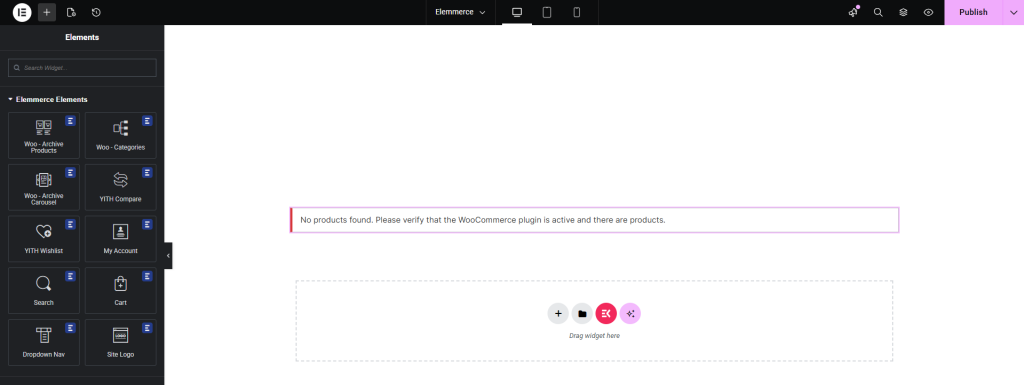
How to add Elemmerce Woo Archive Products? #
To utilize the Elemmerce element, open your desired page in Elementor (existing or new). Navigate to the ‘Elements’ tab and use the search option to find the ‘Woo – Archive Products’ element. Now simply drag and drop the widget onto the page or the ‘+’ section.
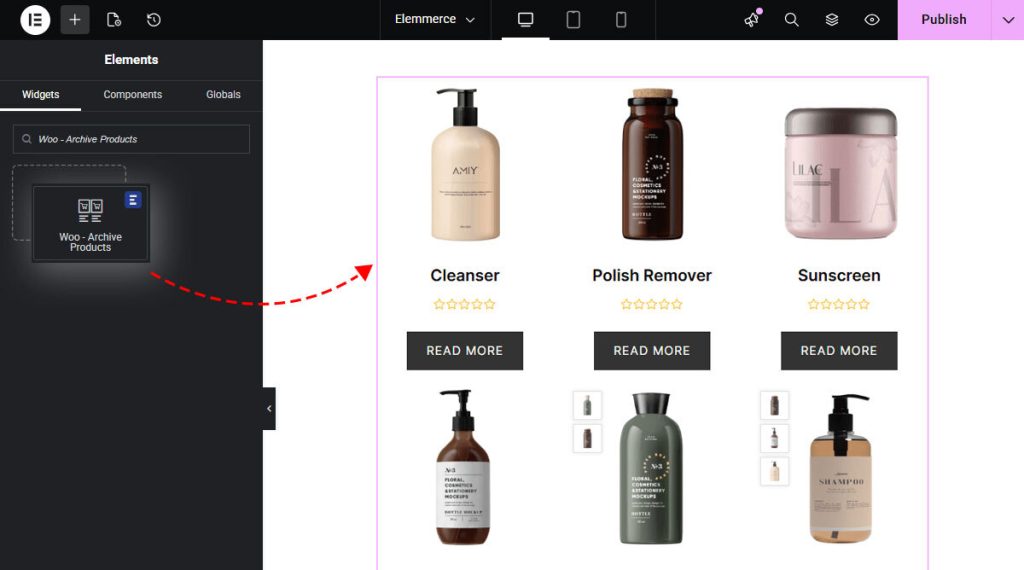
Configuring widgets Settings
CONTENT TAB #
Under Content Tab you will find Content and Query sections.

How to Setup Column Number #
In content section use the Number of Columns option to set the number of columns in your product page as per your desire.

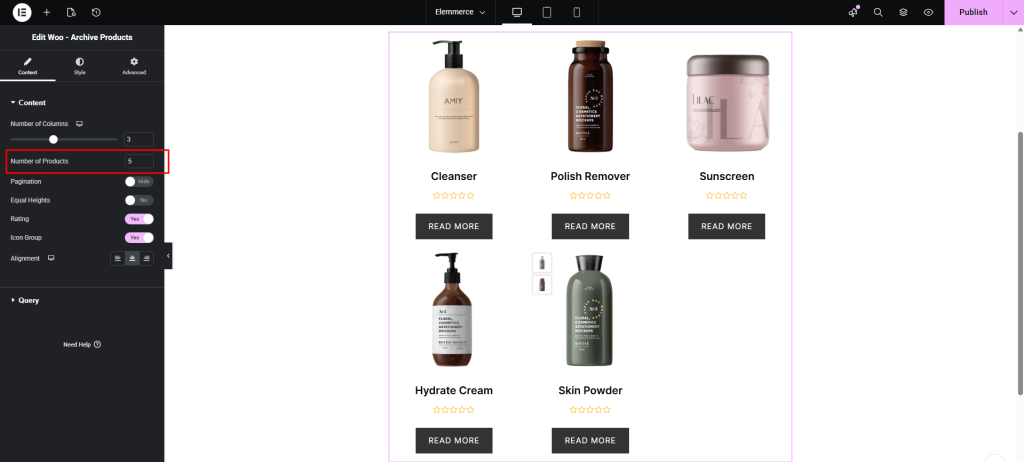
How to Setup Product Numbers #
In content section use the Number of Products option to set the number of products in your page.
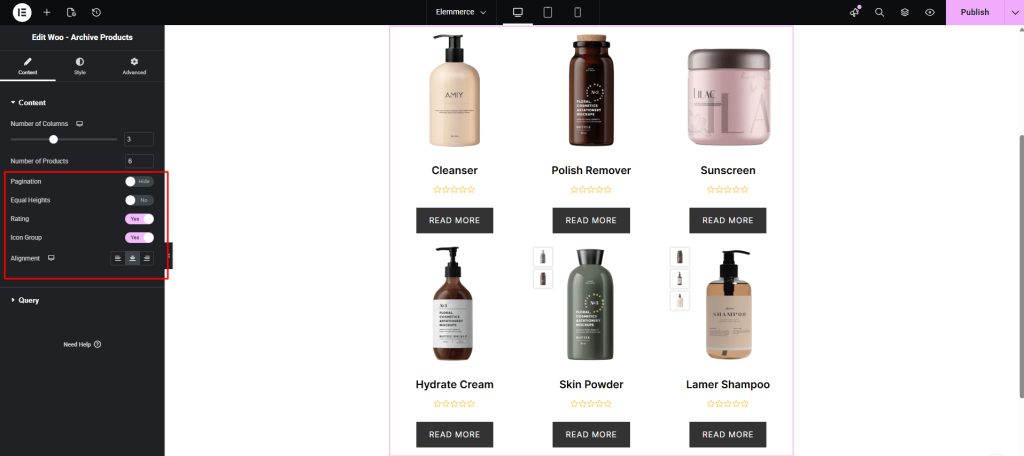
Other Content section options are :
- Pagination
- Equal Heights
- Ratings
- Icon Group
- Alignment
How to Setup Query Management #
Under the Query tab, you will find source option where you can display your product using custom query or manual selection. In Advance option you can filter your product using different options. For more detail please click the link below :

STYLE TAB #
How to Style Elemmerce Woo Archive Products?
Customizing your Woo Archive Products with colors, text, alignment and other adjustment you need to go to Style Tab. Style Tabs contains following options:
- Item
- Image
- Title
- Price
- Rating
- Button
- Sale
- Icon Group
- Pagination


