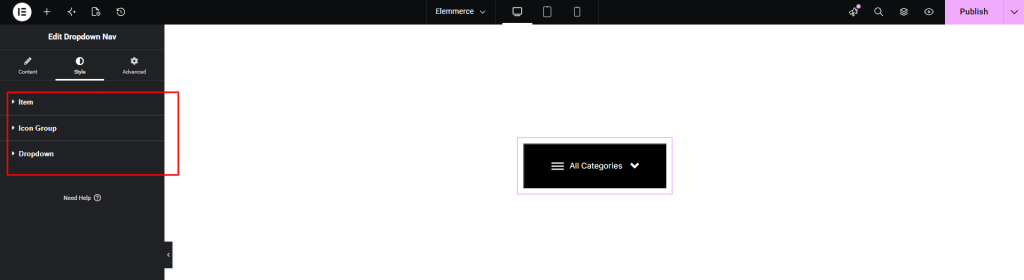

Dropdown Nav allows you to display a navigation menu in a compact dropdown format, helping users easily access different sections of your website. You can add and customize the dropdown navigation on your pages within minutes.
First, ensure that you have created a menu from Appearance → Menus in your WordPress dashboard.
Note: Make sure a menu is created and assigned; otherwise, the dropdown will not display any items.
How to Add Dropdown Nav? #
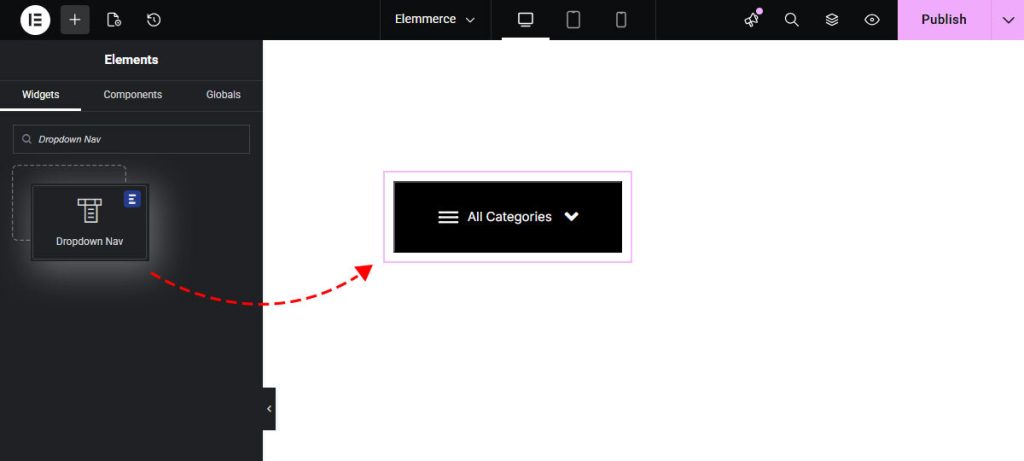
To utilize the Dropdown Nav feature, open your desired page in Elementor (existing or new). Navigate to the ‘Elements’ tab and search for the Dropdown Nav widget. Now simply drag and drop the widget onto the page or the ‘+’ section.
CONTENT TAB #
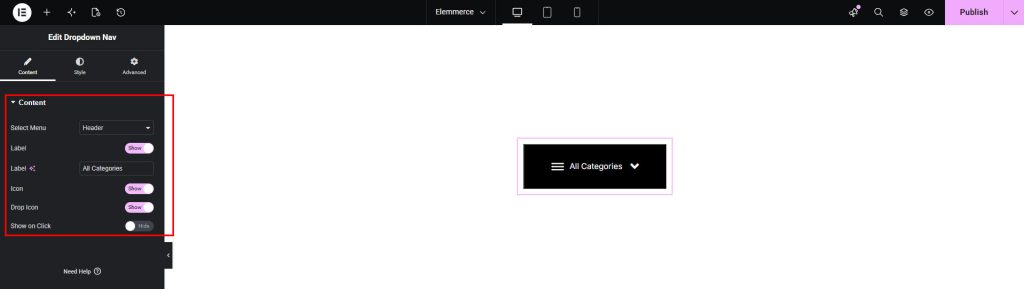
The Content tab in Dropdown Nav allows you to configure how the navigation appears and behaves. You can configure the following options:
- Select Menu – Choose the menu you want to display in the dropdown.
- Label Toggle – Enable/Disable to show or hide the label.
- Label Text – Set the text displayed as the menu label.
- Icon Toggle – Enable/Disable to show or hide the main icon.
- Drop Icon Toggle – Enable/Disable to show or hide the dropdown indicator icon.
- Show on Click Toggle – Enable/Disable to open the dropdown on click instead of hover.
These options help you control the structure and behavior of the dropdown navigation.
STYLE TAB #
To customize your Dropdown Nav, navigate to the Style tab. Here, you can adjust the appearance to match your website design.
The Style tab contains the following options:
- Item
- Icon Group
- Dropdown
These options allow you to control the visual styling of the menu items, icons, and dropdown layout.