
YITH My Account allows your customers to easily access and manage their account details, orders, and personal information from a dedicated section. You can add and customize the My Account feature on your shop pages within minutes.
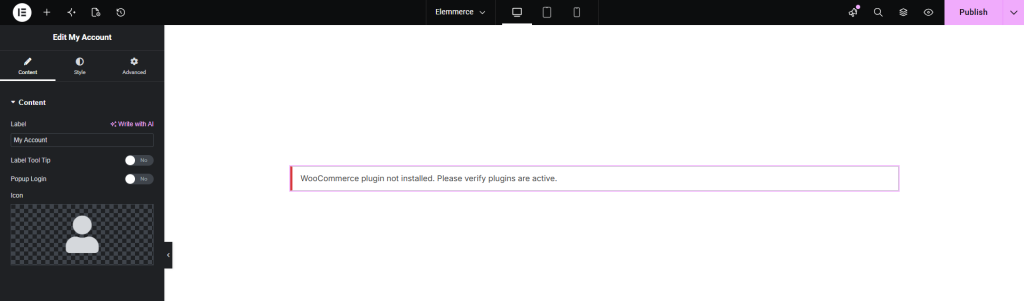
First, ensure that the WooCommerce plugin is installed and activated on your site.
Then install and activate the relevant YITH My Account plugin.
Once activated, the My Account functionality will be automatically available on your website.
Note: Make sure user registration is enabled and customers can create accounts. Otherwise, the feature will not function properly.
How to Add YITH My Account? #
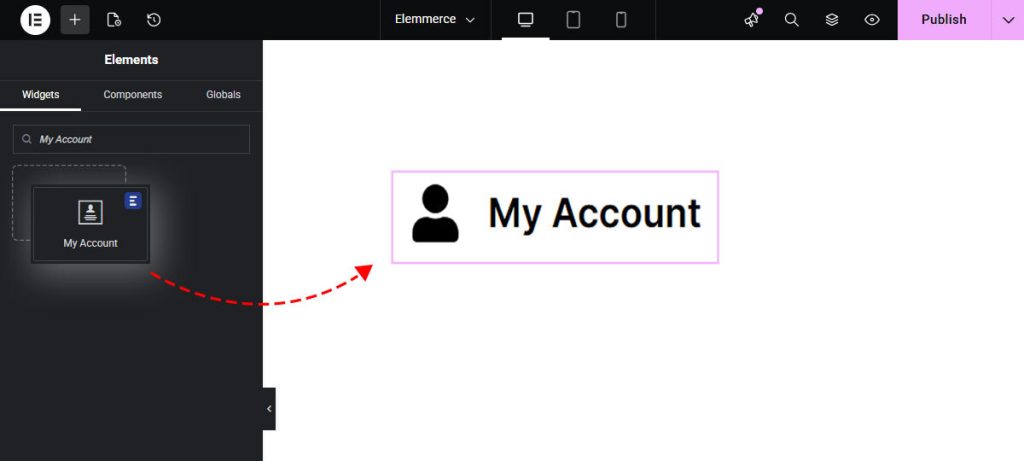
To utilize the YITH My Account feature, open your desired page in Elementor (existing or new). Navigate to the ‘Elements’ tab and ensure the My Account option is enabled from the plugin settings. Use the search option to find the ‘My Account’ widget. Now simply drag and drop the widget onto the page or the ‘+’ section.
CONTENT TAB #
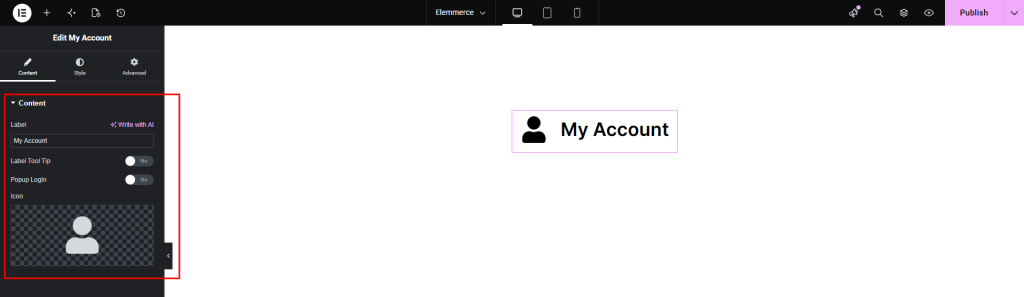
The Content tab in YITH My Account allows you to customize how the My Account button appears. You can configure the following options:
- Label – Set the text displayed on the My Account button.
- Label Tooltip – Enable/Disable to add a short tooltip text that appears when users hover over the button.
- Popup Login Toggle – Enable/Disable to allow users to log in via a popup instead of redirecting to a separate page.
- Icon – Choose or customize an icon to display alongside the button label.
These options help you adjust the look and behavior of the My Account feature to match your website design.
STYLE TAB #
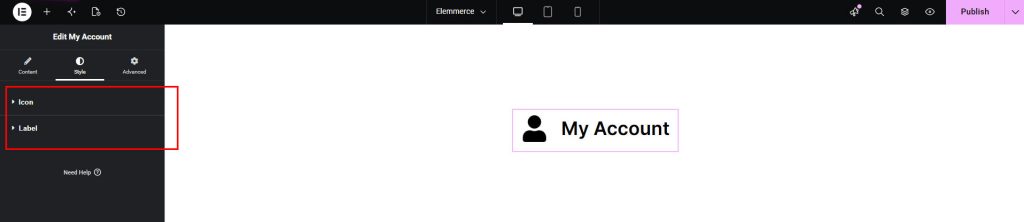
To customize your YITH My Account button (icon and label), navigate to the Style tab. Here, you can adjust the appearance to match your website design.
The Style tab contains the following options:
- Icon
- Label
These options allow you to control the visual styling of the My Account button, including its icon appearance and text formatting.