

Skip to content
  • Home
  • Widgets
  • Docs
  • Contact
Get With shopier

Getting Started

2
  • Plugin Installation
  • How to Add Elemmerce Widgets in Elementor

How to use plugin widgets

12
  • How to Setup Woo – Archive Products
  • How to Setup Woo – Categories
  • How to Setup Woo – Archive Carousel
  • How to Setup Site Logo
  • How to Setup YITH Compare
  • How to Setup YITH Wishlist
  • How to Setup My Account
  • How to Setup Cart
  • How to Setup Search
  • How to Setup Drop Down Nav
  • How to Setup Query Management
  • Frequently Asked Questions
View Categories
  • Home
  • Docs
  • Getting Started
  • Plugin Installation

Plugin Installation

< 1 min read

After downloading the theme package from ThemeForest , you can install the Elemmerce plugin using either of the following methods:

Approach I: Install via Admin Notice (Recommended) #

  1. Log in to your WordPress Dashboard.
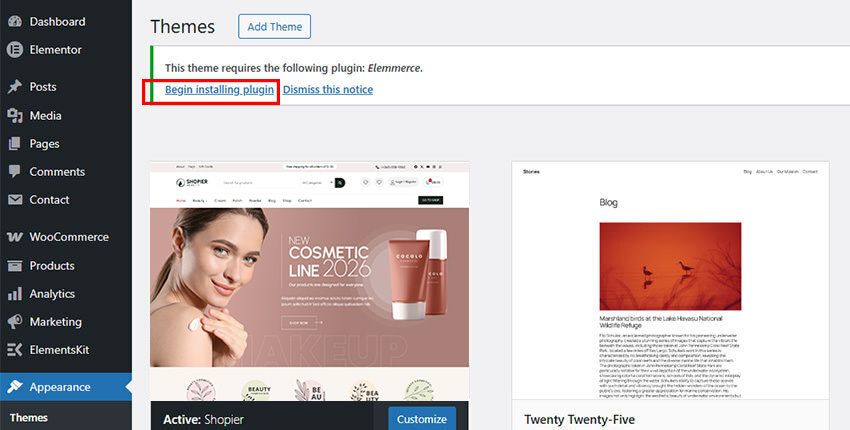
  2. After activating the theme, an admin notice will appear stating that the theme requires recommended plugins.
  3. Click the “Begin Installing Plugins” button in the notice.
  4. You will be redirected to the install required plugins page.
  5. Locate the Elemmerce from the list.
  6. Select the plugin and click Install.
  7. Once installation is completed, click Activate.

✔ This method is recommended because it automatically installs all required plugins for the theme setup.
Approach II: Install from ThemeForest Theme Bundle #

  1. Download and unzip the theme package received from ThemeForest.
  2. Open the extracted folder and locate the “Elemmerce” folder.
  3. Find the Elemmerce plugin (.zip file) inside it.
  4. Log in to your WordPress Dashboard.
  5. Go to Plugins → Add New → Upload Plugin.
  6. Click Choose File and select the Elemmerce plugin .zip file.
  7. Click Install Now.
  8. After installation, click Activate Plugin.

Updated on June 7, 2026

What are your Feelings

  • Happy
  • Normal
  • Sad

Share This Article :

  • Facebook
  • X
  • LinkedIn
  • Pinterest
How to Add Elemmerce Widgets in ElementorHow to Add Elemmerce Widgets in Elementor
Table of Contents
  • Approach I: Install via Admin Notice (Recommended)
  • Approach II: Install from ThemeForest Theme Bundle

Copyright © 2026 Elemmerce. All rights reserved.

Powered by
►
Necessary cookies enable essential site features like secure log-ins and consent preference adjustments. They do not store personal data.
None
►
Functional cookies support features like content sharing on social media, collecting feedback, and enabling third-party tools.
None
►
Analytical cookies track visitor interactions, providing insights on metrics like visitor count, bounce rate, and traffic sources.
None
►
Advertisement cookies deliver personalized ads based on your previous visits and analyze the effectiveness of ad campaigns.
None
►
Unclassified cookies are cookies that we are in the process of classifying, together with the providers of individual cookies.
None
Powered by